How to put a Bible verse on your iPhone Lock Screen
You pick up your phone dozens of times a day. With a verse on the Lock Screen, every one of those moments starts with Scripture. Here are three ways to do it, from a verse that changes on its own to a free one you make yourself.
Quick answer: touch and hold your Lock Screen, tap Customize, tap Lock Screen, tap the space under the clock, and add a Bible verse widget. Or save a picture of a verse and set it as your wallpaper.
Which way is right for you?
1. A verse widget
Small text under the clock. It can change by itself every hour or every day. Needs an app.
2. A verse wallpaper
The verse is part of the picture behind your clock. It stays the same until you change it.
3. Do it yourself
Free, no app. A screenshot of a verse, set as your wallpaper.
Way 1: Add a Bible verse widget to your Lock Screen
A widget is a small box of live information. On the Lock Screen it sits just under the clock, and it can show a new verse on its own, so you see something fresh through the day.
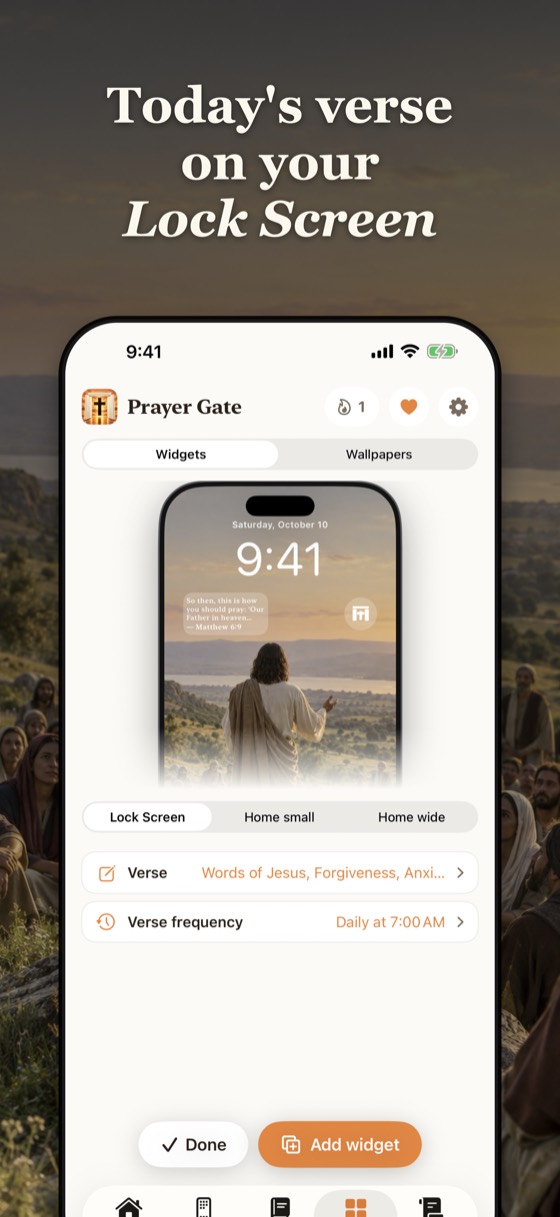
- Install a Bible verse widget app. These steps use Narrow Gate; most widget apps work the same way.
- Open the app once and choose your verse. In Narrow Gate, open the Widgets tab and pick Changing verses (a new verse every hour or every day, from themes like hope or peace) or One verse (a verse you choose that stays).
- Go to your Lock Screen. Unlock with Face ID, but stay on the Lock Screen. Touch and hold an empty part of it until Customize appears.
- Tap Customize, then tap Lock Screen.
- Tap the box under the clock that says Add Widgets.
- Scroll the list, tap Narrow Gate, then tap the verse widget to add it.
- Close the widget list, then tap Done.
Good to know: iPhone shows every Lock Screen widget in a soft, see-through style, so the verse takes on the look of your wallpaper. That's Apple's design, not a setting. Short verses fit best.
Way 2: Set a Bible verse wallpaper
A wallpaper puts the verse right into the picture. It's bigger and easier to read than a widget, but it doesn't change unless you set a new one.
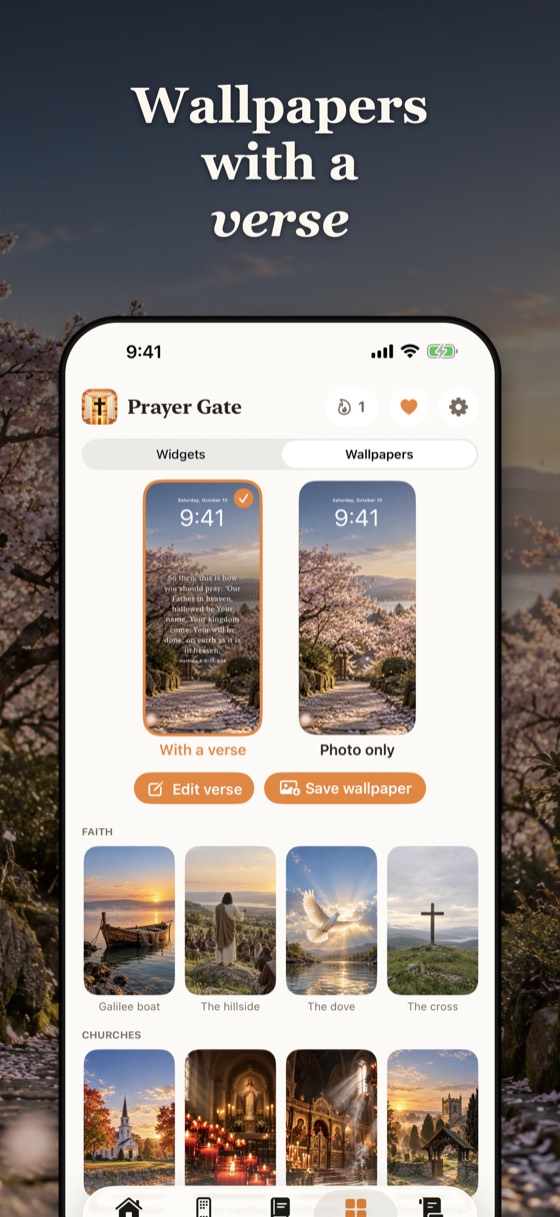
- Make or find a verse picture. In Narrow Gate, open Widgets, tap Wallpapers, choose a verse and a photo, and tap Save wallpaper. It goes to your Photos.
- Open Settings, tap Wallpaper, then Add New Wallpaper.
- Tap Photos and pick the verse picture.
- Pinch and drag so the clock doesn't cover the words, then tap Add and Set as Wallpaper Pair.
Tip: you can use both. A calm verse wallpaper behind, and a widget under the clock with a different verse that changes through the day.
Way 3: The free way, no app
- Find the verse in any Bible app or website and make the text large.
- Take a screenshot: press the side button and the volume up button together.
- Tap the preview in the corner, crop it to just the verse, then tap Done and Save to Photos.
- Set it as your wallpaper with the steps in Way 2.
It's plain, but it works, and it costs nothing.
Short verses that fit a Lock Screen
A Lock Screen has little room, so short verses work best. A few to start with (King James Version):
- "The LORD is my shepherd; I shall not want." Psalm 23:1
- "What time I am afraid, I will trust in thee." Psalm 56:3
- "I can do all things through Christ which strengtheneth me." Philippians 4:13
- "Casting all your care upon him; for he careth for you." 1 Peter 5:7
- "They are new every morning: great is thy faithfulness." Lamentations 3:23
- "This is the day which the LORD hath made; we will rejoice and be glad in it." Psalm 118:24
- "Trust in the LORD with all thine heart; and lean not unto thine own understanding." Proverbs 3:5
About Narrow Gate
Narrow Gate is a Christian Bible app for iPhone with Lock Screen and Home Screen verse widgets, verse wallpapers, a short prayer before the apps you choose, and the whole Bible one verse at a time in the KJV, WEB, BSB and ASV. Reading the Bible in the app is free; widgets and wallpapers are part of the subscription.
Questions
Can you put a Bible verse on your iPhone Lock Screen?
Yes. Add a Bible verse widget under the clock (touch and hold the Lock Screen, tap Customize, then Lock Screen, then Add Widgets), or set a picture of a verse as your wallpaper.
Can the verse on my Lock Screen change every day?
Yes, with a widget. A verse widget like Narrow Gate's can show a new verse every hour or every day. A wallpaper stays the same until you change it.
Why does my Lock Screen widget look see-through?
iPhone shows all Lock Screen widgets in a frosted, see-through style so they match the wallpaper. Apps can't change that.
Is there a free way to put a verse on my Lock Screen?
Yes. Take a screenshot of a verse, crop it, and set it as your wallpaper in Settings, then Wallpaper, then Add New Wallpaper.
What are good short Bible verses for a Lock Screen?
Psalm 23:1, Psalm 56:3, Philippians 4:13, 1 Peter 5:7 and Lamentations 3:23 are short enough to read at a glance.